
Instructions for sitters

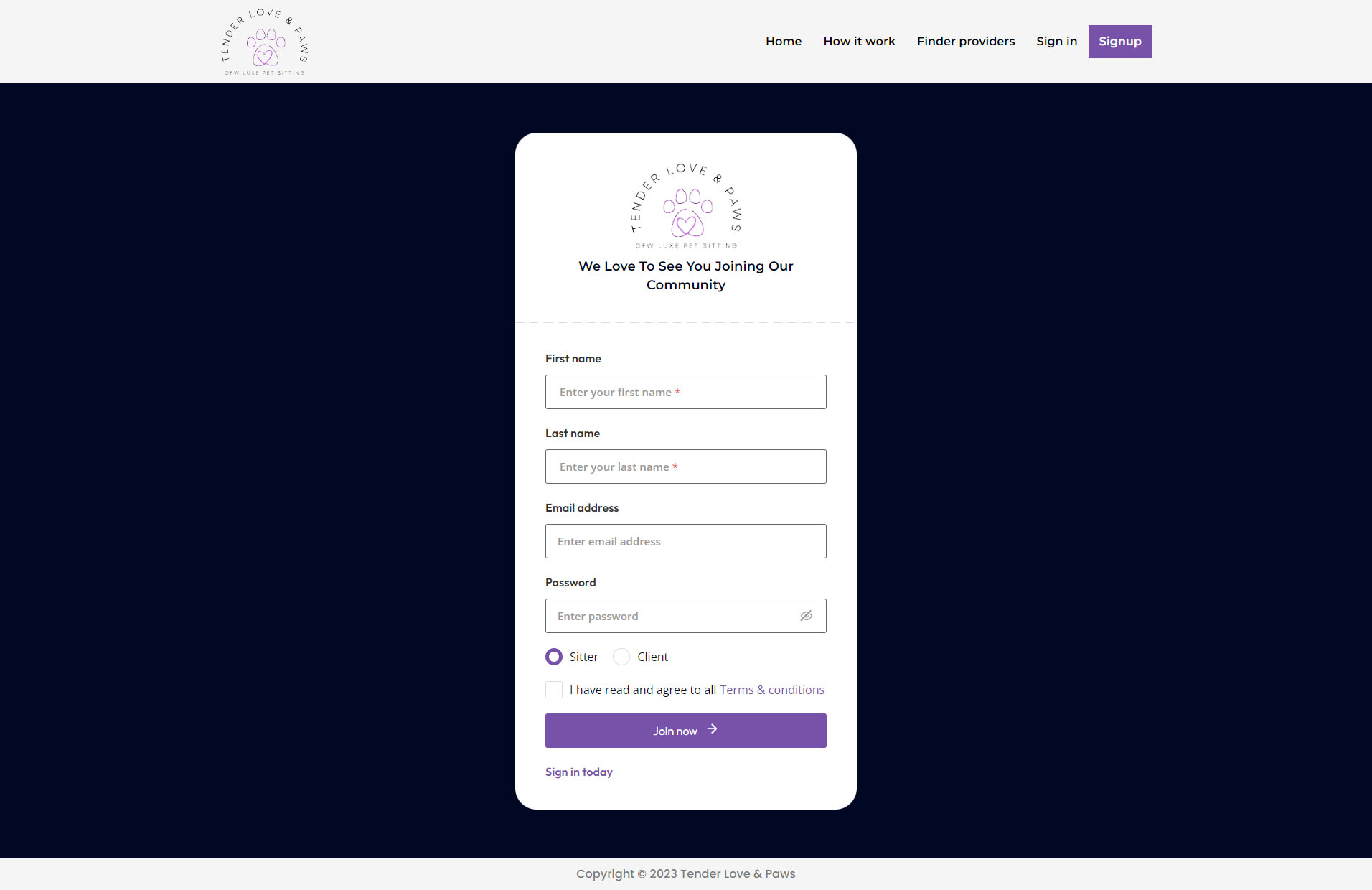
Signup as a sitter

Signup as a sitter

  • Step #01

Visit our signup page and register your account with your personals details as a sitter.

Step #01
Step #02
Confirm your email

Confirm your email

  • Step #02

After a successful registration, please check your email for a confirmation email from us, Confirm your email by clicking the provided link.

Upload signed documents

Upload signed documents

  • Step #03

Once your account is confirmed you can go to verification hub and upload signed documents for further verification.

Step #03
Step #04
Wait for approval

Wait for approval

  • Step #04

After you upload the signed documents, we will review your application and approve your account.
Complete your profile

Complete your profile

  • Step #05

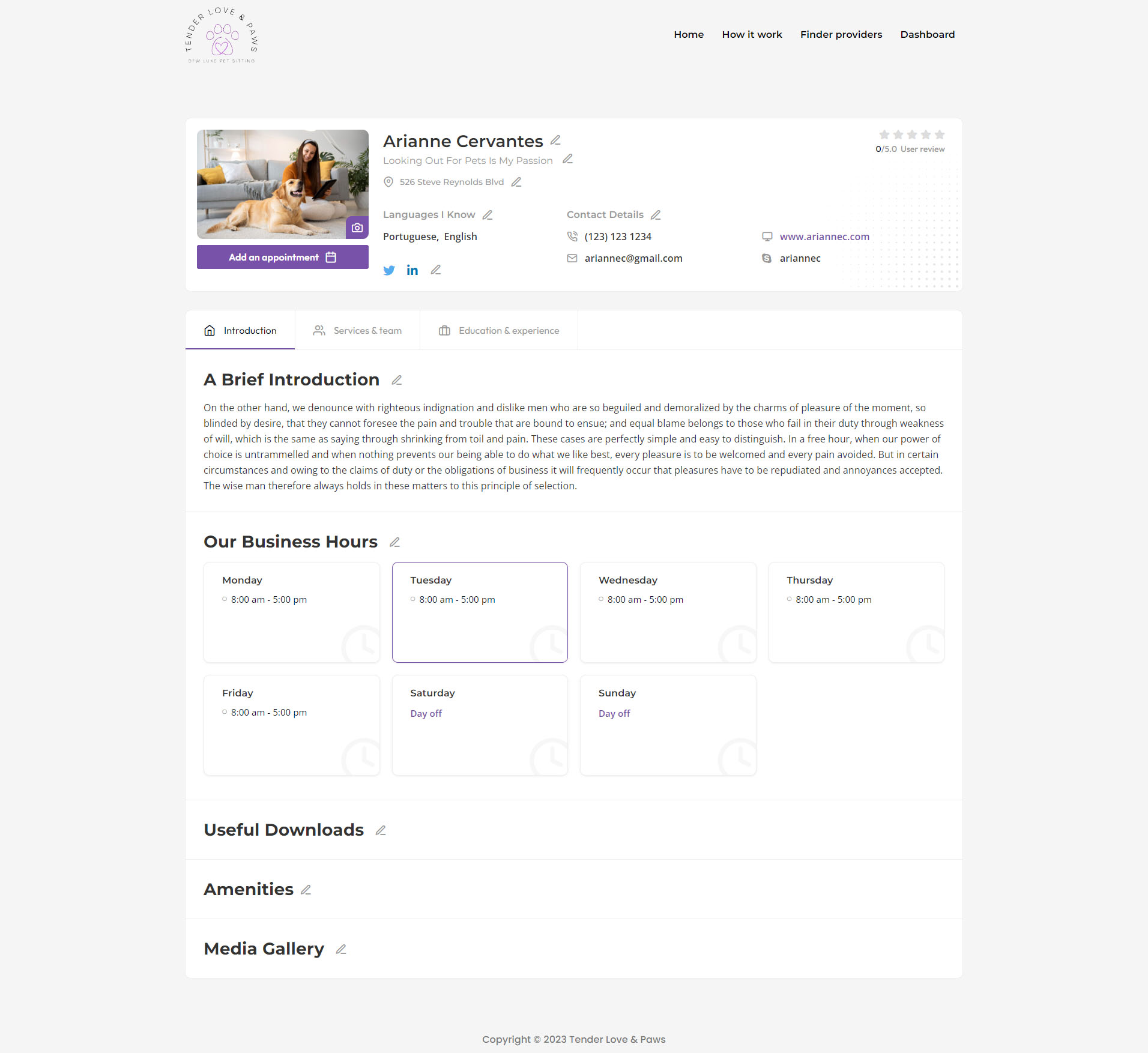
While we are reviewing your application you can go ahead and complete your profile by clicking manage profile link in dashboard page and add following details:

  1. Upload photo of yourself
  2. Add a tagline (optional)
  3. Add your availability/business hours
  4. Add languages you know
  5. Add your contact details
  6. Add your location
  7. A brief introduction and dogs you can sit
  8. Add images in media gallery of you sitting pets
  9. Add experience and education
Step #05
Step #06
Create new category for your services

Create new category for your services

  • Step #06

Once you are done with adding a category, you can start adding services under that category. You can create multiple categories and services at the same time.

Here are the steps to add a service:

  1. Click on add new service button under your newly added category
  2. Add your service title
  3. Add the price for your service
  4. Add a description of your service
  5. Upload a photo related to your service
  6. check the box for Allow this service to show in booking process if you want to make this service public  
  7. Click on save and & update changes once you are done adding all the above details
  8. You can repeat same process to add more categories
Add new service

Add new service

  • Step #07

While adding your profile head over to Services and team tab and add your services.
Here are the steps to add a new service:

  1. Click on pencil icon in front of heading our services
  2. A popup will open after you click the pencil icon, select the main category
    1. Drop in contains 30 minutes drop in service
    2. Introduction contains meet and greet service
    3. Stay contains overnight and short stay
  3. After selecting the main category select your sub-category
  4. Click on save & update changes once you are done adding categories
  5. You can repeat same process to add more services
Step #07
Step #08
Add an appointment time slots

Add an appointment time slots

  • Step #08

To add your time slot for appointment follow these instructions:

  1. Click on the button add and appointment under your profile photo
  2. Click on add new time slots
  3. Select the list of days you are available for an appointment
  4. Add your shift start and end time which will apply on the selected days your choose above (you can have different time slots for different days)
  5. Add the service duration time
  6. Add the appointment duration time
  7.  Select 1 in the no. of appointment spaces
  8. Click the generate time slots button to save your time slots
  9. You can repeat this process for different days if you have a different schedule for each day.